Explore an image concept
Begin with paired still images and motion concepts and a concrete visual goal. Describe a clear still composition first, followed by a separate, restrained motion brief.

Use AIJev’s AI image and video generator to explore image concepts and short video scenes. Begin with the composition of an image, then describe the action and camera direction for a separate video task. Check each selected model before continuing. Review the available model, supported settings, and current credit quote before submitting a task.
Begin with paired still images and motion concepts and a concrete visual goal. Describe a clear still composition first, followed by a separate, restrained motion brief.
For a reference-led idea, upload material you have permission to use and check the selected model’s requirements. Say what should stay recognizable and what should change.
Plan the frame around the intended use: a cover, a product concept, or a social post. Place the focal subject deliberately and reserve room for final text.
Browse this site’s published examples and prompt library to understand how a brief relates to an output. Read the actual model label, choose a useful compositional idea, and rewrite the prompt for your subject.
Use the published image gallery to study an actual result alongside its model label and available prompt. Look at subject placement, light, and which details survived the instruction. The six prompt ideas on this page are suggested briefs you can adapt, rather than claims that those exact scenes were generated.
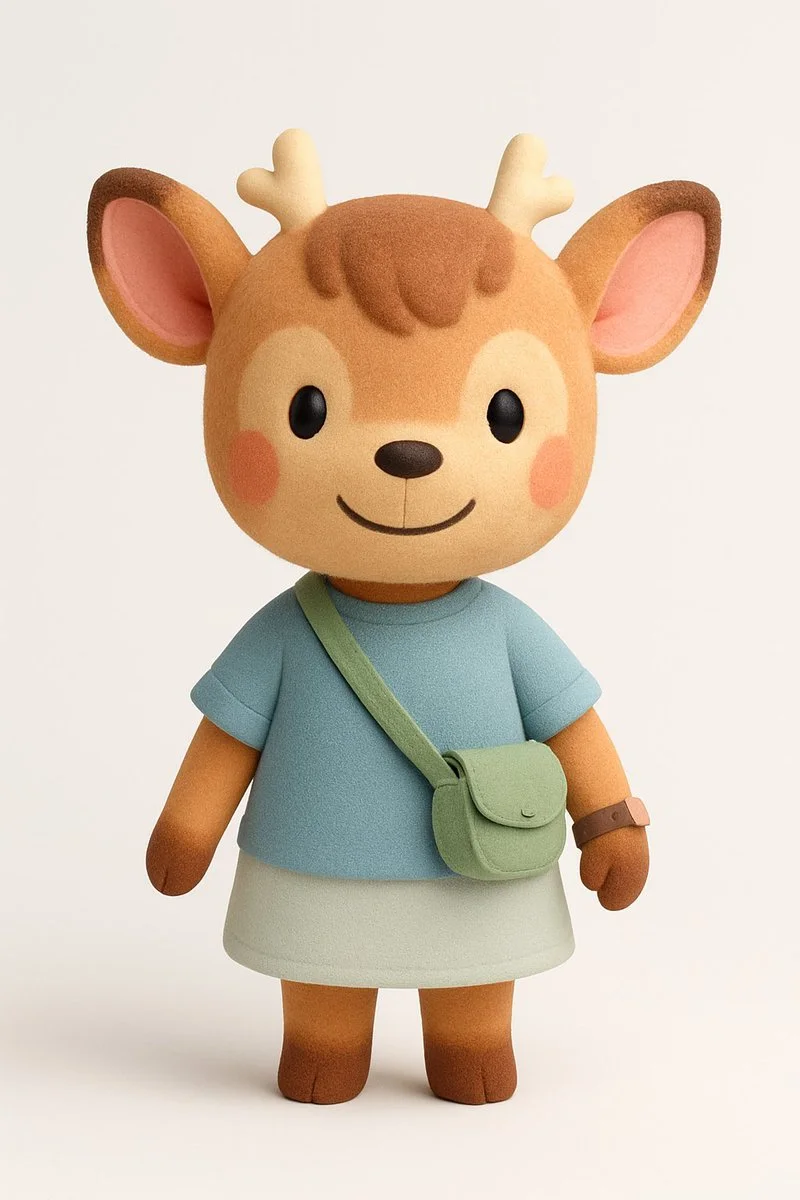
Nano Banana
Create a 3D-rendered digital illustration of a stylized cartoon boy character, standing in a neutral pose. The character should be rendered in a realistic-minimalist 3D style, with soft rounded proportions and plush matte textures — similar to high-end Cinema 4D + Redshift product renders.
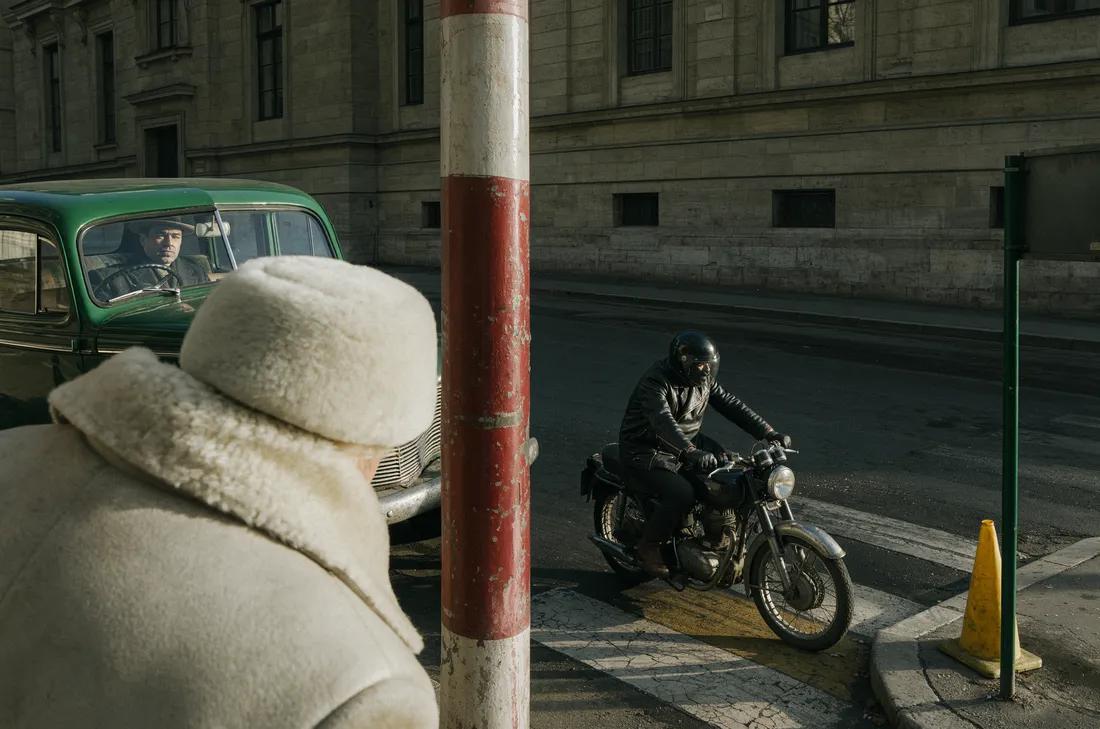
FLUX 3
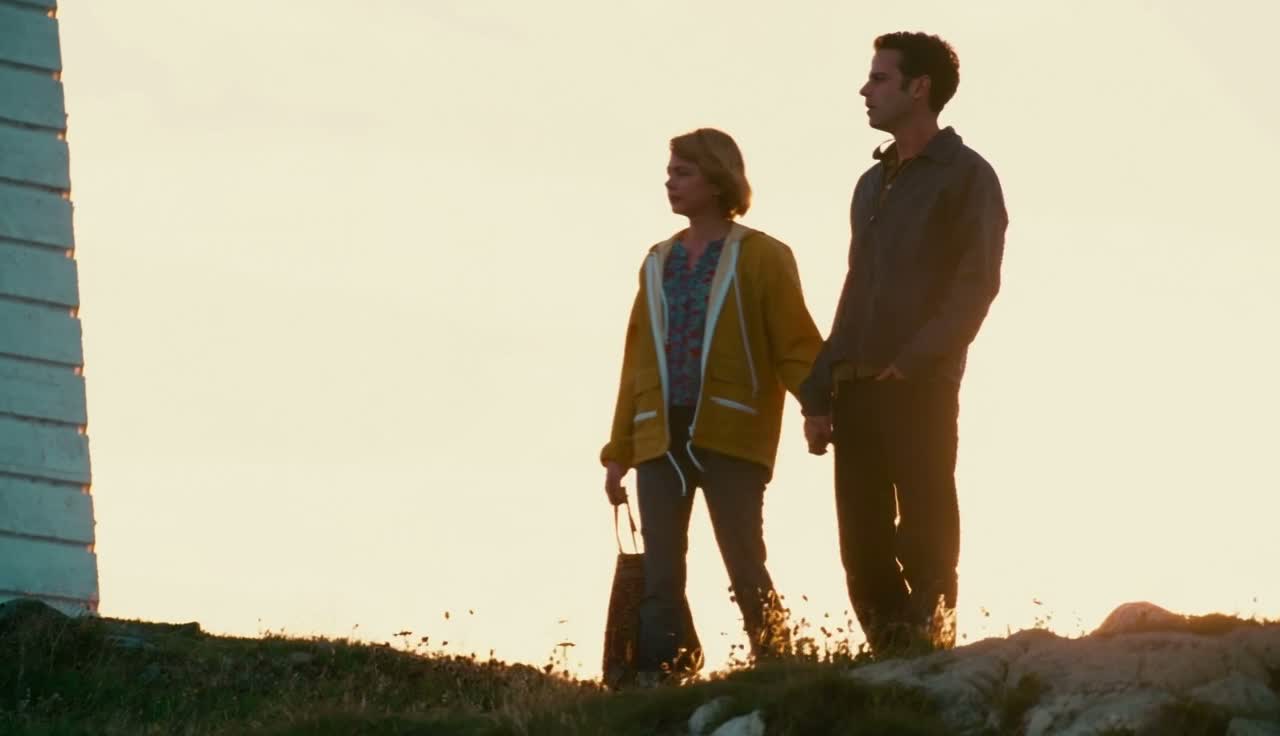
FLUX 3
Prompt idea: An unbranded ceramic bottle stands on a pale stone surface beside a single leaf, with warm window light and space for a headline. Review the silhouette and available text space before planning a moving version.
Prompt idea: Use a supported reference of the bottle and describe a slow camera approach while the leaf barely moves. Keep the product centered. Watch for changes to the bottle shape between the first and last frames.
Prompt idea: A friendly illustrated courier wearing a teal jacket stands against a simple background, holding a plain parcel with both hands. Check the pose, hands, and clothing details before developing another scene.
Prompt idea: Describe the courier turning slightly and offering the parcel to the camera, with one continuous shot and a neutral background. Keep the brief focused; several unrelated actions make continuity harder to assess.
Prompt idea: A small reading corner has amber light, green upholstery, and an open book. Specify a calm editorial composition with clear depth. Compare palette and placement in the still before introducing camera movement.
Prompt idea: Plan a vertical still and a short matching clip around a café window, with a blank area reserved for copy added later. Check cropping separately for each output rather than assuming one framing fits both.
Start with paired still images and motion concepts. Name the subject, setting, and purpose, then describe a clear still composition first, followed by a separate, restrained motion brief. Decide which feature makes the result useful for your project.
Select an available image model and read the controls offered for the task. Use a reference only when that input is supported. Choose framing for the place where the result will appear, and leave room for any crop or text you will add later.
Check the current credit quote after choosing the model and output settings. Save your brief and selected controls so you can compare later attempts. Submit the task when the inputs match your plan, then wait for its status rather than repeatedly submitting the same request.
Open the completed result in History or Assets and inspect visual consistency between the still concept and the completed clip. Review small details at the available image size. Change one instruction for your next attempt, keeping a useful version for comparison.
Use the actual model label and controls shown in the generator. The focus here is Paired still images and motion concepts; input support, output options, and credit costs still depend on your selection.
Start with included credits, compare plans, and add more credits whenever you need them.
Approximate, fixed reference rates (2026-10-26); not live. Final amount and currency are determined at checkout.
Loading prices…
Secure checkout is available. For inquiries or assistance, contact us at support@aijev.me.
Yes. No sign-up is required. Generation uses credits; review the quote and your balance before submitting. Guest credits and history are linked to this browser, so keep cookies enabled. You can buy eligible one-time credit packs when checkout is available. Subscriptions require sign-in.
Use AIJev to explore image concepts and short video scenes. Select a model that supports your intended task and check its current input options before generating. Start with paired still images and motion concepts.
Begin with a specific subject, setting, and visual direction. Prompt idea: An unbranded ceramic bottle stands on a pale stone surface beside a single leaf, with warm window light and space for a headline. Review the silhouette and available text space before planning a moving version. Adjust the composition to the size and purpose of your final design. Treat this as a starting brief: adapt the details for your own project, then change one instruction after inspecting the result.
Choose a model with editing support, upload a supported reference, and describe the change. Inspect details you intended to preserve before using the result.
The generator displays a quote for the selected model and settings. Review that quote before submitting; changing the selection can change the cost.
Each example’s actual model label identifies the model used. Examples can use different models from the one you select for a new task.
Use the models currently listed for the task, or contact support about availability. A page heading or a published example does not guarantee that a model can be selected now.
Subscriptions renew according to the billing interval shown at checkout. A one-time credit pack is a single purchase, not a subscription. To cancel a subscription, open Settings > Billing, choose your subscription and confirm cancellation. Check the updated status and end date. If cancellation fails, contact support@aijev.me before your next renewal.
Cancellation stops future subscription renewals once confirmed. Check Settings > Billing for your paid access end date. Existing credits keep their original expiration dates; cancellation does not extend them or automatically issue a cash refund.
You can request a refund within 10 days of purchase if you have unused credits from that purchase and provide a clear reason, subject to our Refund Policy. If eligible, an unused purchase can be fully refunded; a partly used purchase is refunded in proportion to its remaining unused credits. Fully used purchases and free or promotional credits are not refundable.
Email support@aijev.me with the subject Refund Request. Include your account email, order or transaction ID, purchase date and reason. Our Refund Policy provides for a response within 5 business days. Approved refunds return to the original payment method and may take 5–10 business days to appear, depending on the payment provider. The corresponding credits are removed. See /refund-policy for the full conditions.
Credit validity depends on the pack, subscription or promotion that issued them. Review the purchase terms and expiration dates in Settings > Credits. A renewal or new purchase does not extend older credits. Use credits before their stated expiration; do not assume unused subscription credits roll over indefinitely.
Credits charged for a task that is confirmed as failed due to a system error are returned automatically. A task that is still processing has not yet been confirmed as failed. Check its status and your credit history before submitting again. If a confirmed failure still shows an unresolved charge, email support@aijev.me with the task ID.
AI results can vary, so a completed result that differs from your expectations is not automatically treated as a technical failure. Eligible completed image tasks can be submitted for credit refund review using the refund option where available; approval is required. For a video or another issue, contact support@aijev.me with the task ID and details. A credit refund returns credits, not money to your payment method.
Check that you are using the same account or guest browser used for checkout, then review your order status and credit history. Avoid paying again while the first payment is being checked. Email support@aijev.me with your order ID, purchase time and payment receipt so we can investigate. Never send your password or full card details.
Email support@aijev.me. For billing, include your account email and order ID; for generation, include the task ID, issue description and relevant screenshots. If you purchased as a guest, keep the original browser data and payment receipt so we can help locate the purchase.
Start with one of the suggested briefs for paired still images and motion concepts, adapt it to your subject, and choose a supported task. Review the quote before generating, then inspect the result against your original plan.
aijev.me · Updated